Add the chat to WordPress
Put your bot's website chat on a WordPress site with the Meerlume plugin, as a bubble on every page or inside a booking page, without editing your theme.
If your site runs on WordPress, the Meerlume plugin does what the embed snippet does, without touching your theme. You paste your bot's code into WordPress once. Everything about how the chat looks and what it says stays in Meerlume.
Get the pluginBefore you start
- Website chat connected to your bot, and the bot published. Connect website chat walks through it; it takes a minute and is on every plan, Free included.
- An administrator login to your WordPress site, which needs WordPress 6.3 or later. On WordPress.com, your plan has to allow plugins.
Install the plugin
Find it
In your WordPress dashboard, open Plugins → Add New Plugin (Add New on older versions) and search for Meerlume.
Install and activate
Press Install Now, then Activate. A Meerlume page appears under Settings.
You can also download it from wordpress.org/plugins/meerlume and upload the zip under Plugins → Add New Plugin → Upload Plugin.
Connect your bot
Copy your bot's link
In Meerlume, open your bot's settings and the Website chat tab. Under Using WordPress?, press your chat code to copy it. The chat link or the whole embed snippet work too.
Paste it into WordPress
Open Settings → Meerlume, paste it into Chat code and press Save Changes. The plugin keeps only the 7-character code from whatever you paste.
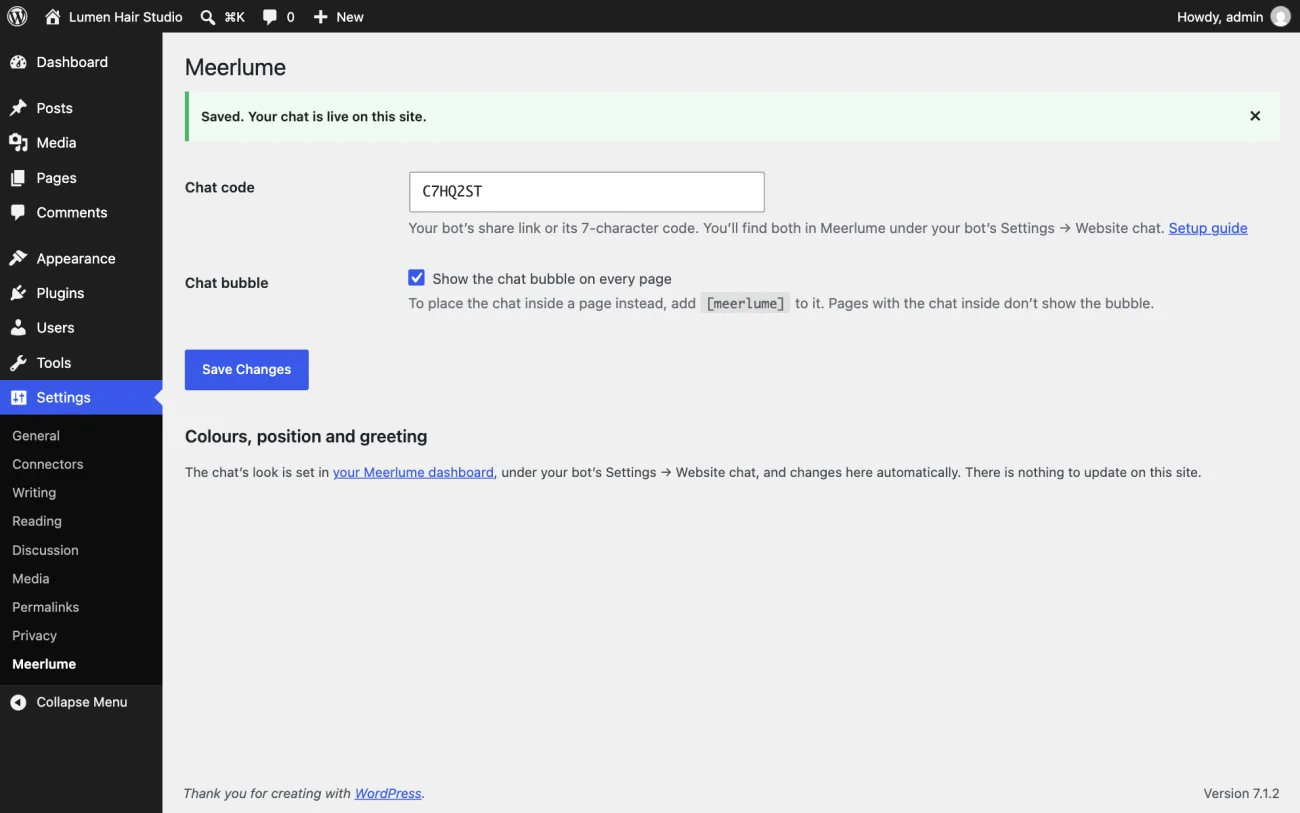
After saving, the page tells you what it found:
- Saved. Your chat is live on this site. You're done.
- Saved, but no live website chat was found for this code yet. Connect Website chat to the bot in Meerlume and publish it. The chat appears without changing anything in WordPress.
- Saved. Meerlume could not be reached to check the code, so the chat may not show yet. Reload your site in a minute to check.
- That doesn't look like a Meerlume chat code. Copy the code again from the Website chat tab. Your previous code is kept.
Bubble or in the page
The same two ways to show the chat as the embed snippet, without the snippet.
The Show the chat bubble on every page box is ticked by default. The bubble sits in a corner of every page and opens the chat when a visitor clicks it.
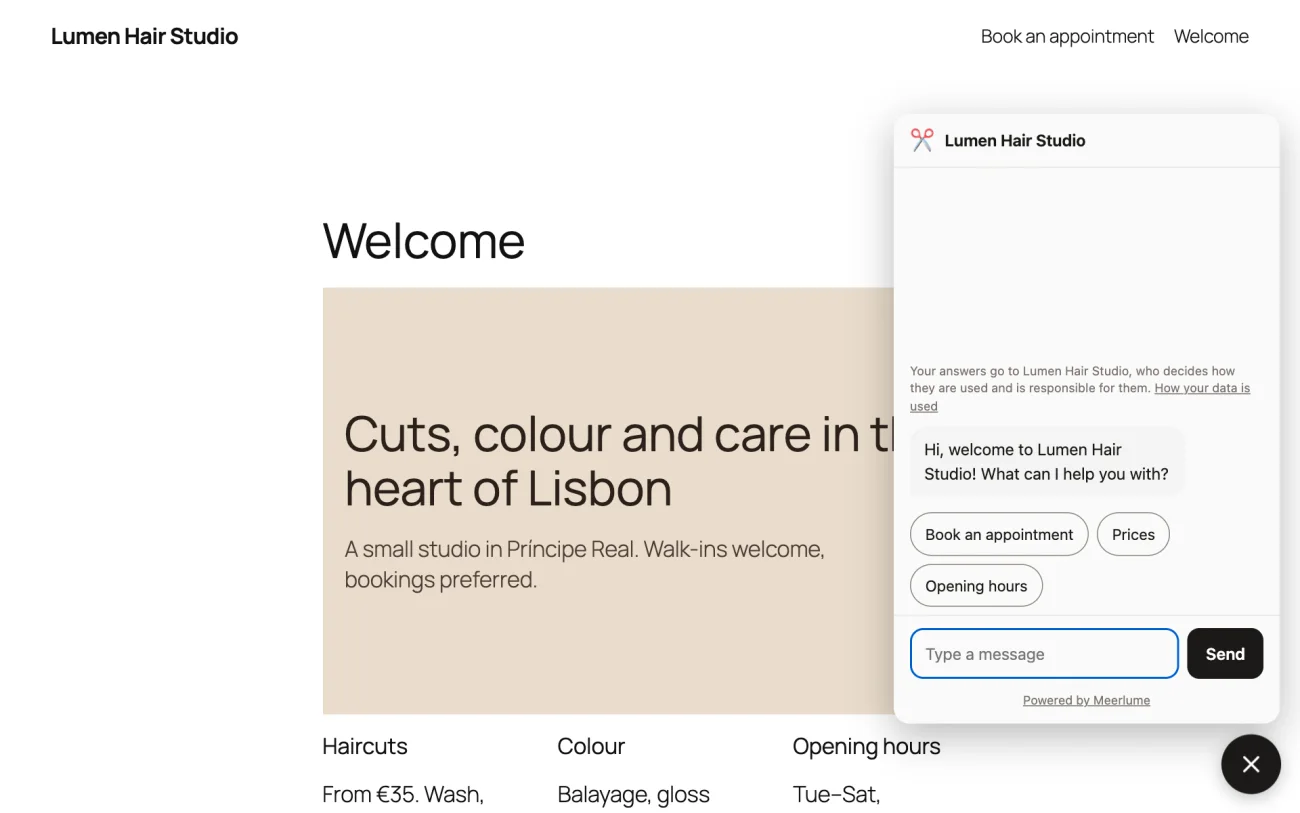
To put the chat inside a page instead, such as a Book now page, add a Shortcode block with [meerlume]. The chat grows with the conversation, and pages that show it inside don't also show the bubble.
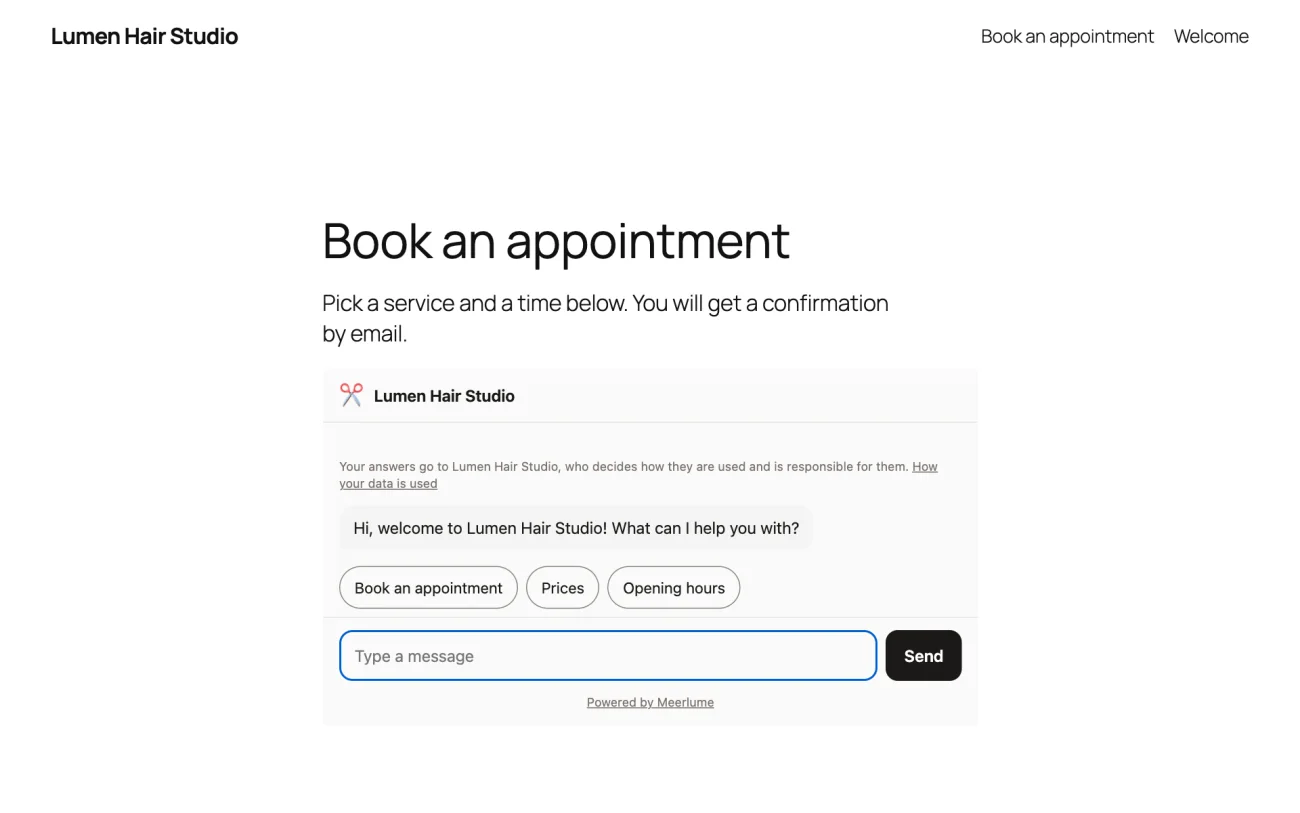
[meerlume height="600"]pins the chat to a fixed height in pixels, 320 or more.[meerlume code="K3F9QXA"]shows a different bot on that page, for a site with more than one.
How it looks
Theme, brand colour, bubble position and greeting are set in Meerlume, in the bot's Website chat tab, not in WordPress. The chat reads them every time it loads, so a change shows up on your site within a few minutes, with nothing to save in WordPress. How it looks, in Connect website chat, covers each setting.
Powered by Meerlume
On the Free plan the chat window shows a small Powered by Meerlume credit. Starter and above remove it. The plugin adds no branding of its own.
If the chat doesn't appear
- Check that the bot is published and Website chat is connected. If it isn't, the bubble still appears, but the chat tells visitors the business isn't taking messages right now.
- Clear the cache of any caching plugin, and of your host if it caches pages, after saving the code.
- If a performance plugin combines, delays or hosts scripts itself, exclude meerlume.com/widget.js from it. The chat reads its settings from its own script tag and must stay current.
- If your site sends a Content-Security-Policy, it has to allow the chat. The three entries it needs are in Connect website chat.
Deactivating the plugin removes the chat from your site. Take [meerlume] out of any page you added it to first, or WordPress shows it as plain text. Deleting the plugin also removes its one setting. Your conversations, contacts and bookings stay in Meerlume either way.
Related guides
Continue with the next part of the setup once this step is stable.
Connect website chat
Put your bot on your own site as a chat bubble or in the page, and get a chat link you can share anywhere.
Put your booking link on Google Maps
Add a Book button to your Google Business Profile and your Apple Maps listing, so people who find you on a map can book without calling.
Set up the calendar
Configure timezone, hours, services, and resources so your bot can offer real bookings instead of just collecting requests.